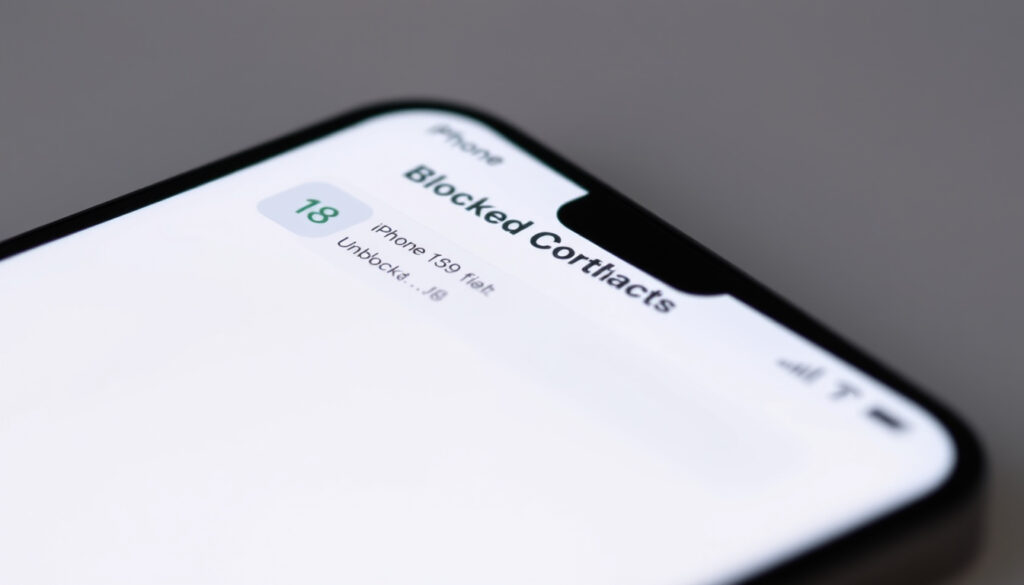
How to Unblock a Number on iPhone – iOS 18 Steps
Blocking unwanted calls and messages on an iPhone is straightforward, but many users find themselves needing to reverse that decision at some point. Whether a contact was blocked temporarily or circumstances have changed, the unblocking process remains consistent across iOS versions, including the latest iOS 18. Understanding how to navigate the blocked contacts list and restore communication with specific numbers or email addresses can save time and prevent unnecessary frustration.
The blocked contacts feature in iOS operates as a centralized system, meaning blocks applied through the Phone, Messages, or FaceTime apps all draw from the same shared list. This integration simplifies management but requires knowing where to look when you need to make changes. The process involves navigating through Settings rather than opening individual apps, and it works identically whether you’re using an iPhone 15, iPhone 14, or an older model running iOS 17 or iOS 18.
This guide walks through every method available for unblocking numbers, explains what happens to previously blocked communications, and addresses common issues that might prevent the unblocking process from working as expected.
How Do I Unblock a Number on My iPhone?
The primary method for unblocking a contact involves using the Settings app, which serves as the central hub for managing blocked numbers across all communication apps. This unified approach means any changes made through Settings immediately apply to Phone calls, text messages, and FaceTime requests alike.
Settings > Phone > Blocked Contacts > Swipe Left > Unblock
Phone, Messages, and FaceTime all share the same blocked list
No alert or notification is sent to the unblocked contact
Process remains identical from iOS 14 through iOS 18
To unblock a number through Settings, begin by opening the Settings app on your iPhone home screen. Scroll down until you find the section labeled “Apps,” then tap on it to expand the list of installed applications. From the apps list, select either “Phone,” “Messages,” or “FaceTime—the choice matters only if you remember which app was used to block the contact initially. Once inside the selected app’s settings, scroll toward the bottom where you will find the “Blocked Contacts” option.
The Blocked Contacts screen displays every number, contact, and email address that has been blocked through that particular app. Because the list syncs across all three communication apps, entries added from Messages will appear when accessing the list through Phone settings and vice versa. To remove a specific entry, swipe left on the line containing the number or contact name. A red “Unblock” button will appear, and tapping it immediately removes that entry from the blocked list.
For users managing multiple entries, tapping the “Edit” button in the upper right corner of the Blocked Contacts screen allows bulk selection and unblocking. This approach proves particularly useful after resolving disagreements with multiple contacts or when cleaning out outdated blocked entries.
Key Insights for Managing Blocked Contacts
- Swipe to unblock: The gesture-based unblock action works consistently across all iOS versions, with no confirmation dialog required once you tap the button.
- Email blocks persist: If a contact was blocked via their email address used for iMessage, that email remains in the blocked list even if their phone number is unblocked separately.
- Real-time synchronization: Changes to the blocked list take effect immediately across Phone, Messages, and FaceTime without requiring a restart or manual refresh.
- Search functionality: Using the search bar at the top of the Blocked Contacts list helps locate specific entries when the list has grown lengthy.
- Repeat blocking: Unblocked contacts can be blocked again at any time through the same Settings pathway if needed in the future.
- Carrier-level blocks: Blocks set at the carrier level through your wireless provider will not appear in the iOS blocked list and must be managed through your carrier’s app or customer service.
| App | Settings Path | Unblock Action |
|---|---|---|
| Phone | Settings > Phone > Blocked Contacts | Swipe left > Unblock |
| Messages | Settings > Messages > Blocked | Swipe left > Unblock |
| FaceTime | Settings > FaceTime > Blocked | Swipe left > Unblock |
| Contacts App | Open contact > Scroll to bottom | Tap “Unblock this Caller” |
Where Is the Blocked Numbers List on iPhone?
Finding the blocked numbers list requires navigating through the Settings app rather than searching within individual communication apps. The list exists as a unified collection that accumulates entries from all blocking sources, making it the single source of truth for managing restrictions across iOS.
Accessing the Centralized Blocked List
The most reliable path to the blocked contacts list begins with opening Settings and selecting “Phone” from the apps section. Once inside Phone settings, scroll to the bottom where “Blocked Contacts” appears as a clickable option. Tapping this opens the complete list of blocked entries, regardless of whether they were originally blocked through calling, messaging, or video calling features.
Alternatively, users can access app-specific views by navigating to Settings > Messages > Blocked or Settings > FaceTime > Blocked. These paths lead to the same underlying list but may display entries differently based on how the block was originally created. For example, a contact blocked from Messages might show only their phone number or email in the Phone view, while the Messages view would display their full contact name if available.
The list supports standard iOS search functionality, allowing users to type a name or number in the search field at the top of the screen. This proves especially helpful when the blocked list has accumulated numerous entries over time. The search operates in real-time, filtering results as you type rather than requiring you to scroll through the entire collection manually.
Checking Blocked Calls Through Recent Activity
For users who want to verify whether a specific number was blocked through the Phone app specifically, the Recents tab within the Phone app provides an alternative view. When opening a call entry from the Recents list, blocked numbers will not display any option to unblock—if the number appears without an unblock option, it likely means the block exists elsewhere or was never blocked through the Phone app.
The blocked contacts list operates as a shared database across iOS communication apps. Adding a block through Messages automatically makes that contact visible when you access the list through Phone settings, and the same applies to FaceTime blocks.
How Do You Unblock Someone in Messages or FaceTime?
While Settings provides the primary pathway for managing blocked contacts, both the Messages and FaceTime apps offer direct methods for unblocking that can prove more convenient when you already have a conversation or call history open with the contact you wish to unblock.
Unblocking Through the Messages App
Within the Messages app, open any existing conversation with the contact you want to unblock. If no conversation exists because the person was completely blocked, you will need to use the Settings method described earlier. With an open conversation, tap on the contact’s name or phone number at the top of the screen to access their contact information. This opens a detail card showing their name, phone numbers, and available actions. Scroll to the bottom of this card where you will find the “Unblock this Caller” option. Tapping it immediately removes the block and allows future messages to be received normally.
Unblocking Through the Contacts App
The Contacts app provides another direct pathway for unblocking without navigating through Settings. Open the Contacts app and locate the contact you wish to unblock—whether through searching or scrolling through your contact list. Tap on their name to open their contact card, then scroll all the way to the bottom. If that contact is currently blocked, you will see “Unblock this Caller” displayed at the bottom of their information. One tap removes the block, and the contact’s information card will update to reflect that they are no longer restricted.
Unblocking Through the FaceTime App
FaceTime blocks can be managed through Settings > FaceTime > Blocked Contacts, following the same swipe-to-unblock procedure used for Phone and Messages. However, if you have an incoming or outgoing FaceTime call attempt from a blocked number in your recents, opening that entry and selecting “Unblock” provides a shortcut. This method only works if the FaceTime call attempt appears in your recent calls list, which may happen when a blocked caller attempts to reach you despite the block.
For frequently unblocked contacts, consider adding them to your Favorites list after unblocking. This makes them easier to locate if you need to block them again temporarily, since Favorites appear at the top of the Phone and Contacts apps.
What Happens When You Unblock a Number?
Understanding the consequences of unblocking helps set realistic expectations about what will and will not happen once the restriction is removed. The unblocking action has immediate effects on future communications but does not retroactively recover previously blocked content.
Immediate Communication Restoration
Once a number or contact is unblocked, they regain the ability to contact you through all communication channels immediately. This includes standard cellular phone calls, SMS text messages, iMessage conversations, and FaceTime video or audio calls. Their emails sent to addresses associated with their contact card will also reach your inbox if those addresses were previously blocked.
New notifications will arrive as they normally would, with your iPhone alerting you to incoming calls, messages, and FaceTime requests from the newly unblocked contact. The device treats them as any other non-blocked contact from this point forward, meaning Do Not Disturb settings, notification preferences, and other individual contact settings will apply as configured.
Messages and Voicemails Already Blocked
A common misconception involves the recovery of content that was blocked while the contact was on your blocked list. Unblocking a number does not retrieve or restore any messages, voicemails, or other communications that were blocked during the period when the restriction was active. These items remain deleted or inaccessible.
Blocked voicemails can be found in a dedicated section accessible through Phone > Voicemail > Blocked Messages, but this folder contains only the voicemails that were blocked—they are not delivered to your main voicemail inbox. Unblocking the contact does not move these items; they remain in the blocked folder and can be played from there if you want to hear them.
No Notification Sent to the Unblocked Contact
Apple’s iOS does not send any notification or alert to a contact when they are unblocked. The person whose number you removed from the blocked list will not receive a message, call, or any other indication that the restriction has been lifted. They can simply attempt to contact you, and if your settings allow, their communication will go through normally.
This lack of notification works both ways—blocking a contact also does not alert them, meaning unblocking follows the same privacy-preserving approach. This design allows users to manage their communication preferences without awkward explanations or confrontations.
Any messages, calls, or voicemails that were blocked before unblocking are permanently inaccessible through normal iOS interfaces. Plan accordingly if you were expecting to retrieve important information from those communications.
Troubleshooting: Unblock Not Working or List Missing?
Occasionally, users encounter situations where the unblock option does not appear, the blocked list seems incomplete, or communications fail to resume even after completing the unblocking process. These issues typically stem from specific configuration problems that have straightforward solutions.
When the Unblock Option Does Not Appear
If you navigate to the Blocked Contacts list and cannot find an entry you expect to see, or if swiping left does not reveal an Unblock button, the contact may not actually be blocked through iOS. The block might exist at the carrier level through your wireless provider, which maintains a separate blocking system that does not appear in iPhone settings. Contact your carrier’s customer service to check and manage carrier-level blocks.
Another possibility involves the contact being blocked through a different app than the one you are currently checking. If you added the block through Messages but are looking in the Phone app’s blocked list, the entry might not appear with the same format. Searching across all three app-specific blocked lists—Phone, Messages, and FaceTime—helps locate entries that may have been created through alternative pathways.
Ensuring Your iPhone Runs iOS 18
While the unblocking process remains consistent across iOS versions from 14 through 18, having the latest operating system ensures you have access to the most current interface and bug fixes. To verify your iOS version, open Settings > General > About and look at the version number listed. If an update is available, Settings > General > Software Update will present the option to install it. Multiple video demonstrations and technical guides confirm that the blocked contacts interface has remained stable through recent iOS updates.
Communications Still Not Reaching You After Unblocking
If you have successfully unblocked a contact but their calls or messages still fail to arrive, several factors might be responsible. A simple restart of your iPhone often resolves synchronization delays, as the device may need to refresh its communication settings after making changes to the blocked list. To restart, hold the side button and either volume button until the power slider appears, then drag the slider to turn off the device. Wait a few seconds, then hold the side button to turn it back on.
Toggling Airplane Mode on and off forces the iPhone to re-establish its cellular and internet connections, which can help resolve communication issues that persist after unblocking. Additionally, check that Do Not Disturb is not active, as this mode silences calls and notifications even from unblocked contacts unless they are designated as Favorites or Emergency Bypass is enabled for their contact card.
Email Blocks in iMessage
Some contacts use multiple identifiers with iMessage—a phone number and one or more email addresses. If you unblocked their phone number but they send messages using a blocked email address, those messages will continue to be filtered. Review your blocked list for all email addresses associated with the contact and unblock each one individually if you want to receive messages from all their identifiers.
Managing cached data and app storage can affect communication behavior. Reading our Clear Cache on iPhone – iOS 18 Safari and Apps Guide covers relevant settings that may influence how messages are handled.
Understanding iOS Block and Unblock Behavior
The blocking feature in iOS serves as a privacy and convenience tool designed to give users control over their communication environment. By understanding the philosophy behind these features, users can make more informed decisions about when to block and unblock contacts.
Apple’s implementation treats blocking as a user-controlled preference that affects only the device where the block is applied. This means that if you block someone on your iPhone, they are not notified, and the block does not affect their ability to contact others or be contacted by different phone numbers you might use. Each Apple device maintains its own independent blocked list.
The centralized blocked contacts system represents a design choice that prioritizes user convenience over granular control. While some users might prefer app-specific blocking that prevents calls but allows messages, iOS treats the blocked list as a comprehensive communication filter that applies equally across all native communication apps.
For users seeking more nuanced control, Apple provides alternatives like “Silence Unknown Callers,” which sends calls from numbers not in your contacts directly to voicemail without ringing. This feature, found in Settings > Phone > Silence Unknown Callers, offers a different approach to managing unwanted communications without permanently blocking specific numbers.
Summary
Unblocking a number on iPhone involves navigating to Settings, selecting your communication app of choice, accessing the Blocked Contacts list, and swiping left on the entry you wish to remove. The process works identically across iOS 17 and iOS 18, and the centralized blocked list ensures changes apply to Phone calls, Messages, and FaceTime simultaneously. Alternative methods exist through the Contacts app and directly within active conversations. Unblocking does not send notifications to the affected contact and does not recover previously blocked messages or voicemails. If you encounter issues finding the blocked list or completing the unblocking process, verify your iOS version, check for carrier-level blocks, and restart your device to resolve synchronization problems. For additional iPhone management guidance, explore our article on T-Mobile Pay Bill – Complete Guide to All Methods or other device configuration resources.
Frequently Asked Questions
Does unblocking a number notify them on iPhone?
No notification is sent when you unblock a contact. The person will simply be able to reach you normally if they attempt to call or message, but they receive no alert indicating the restriction has been lifted.
Why can’t I find the blocked list on my iPhone?
The blocked contacts list is located in Settings, not within the Phone, Messages, or FaceTime apps themselves. Navigate to Settings > Phone > Blocked Contacts, or check Settings > Messages > Blocked for an app-specific view.
Is the unblocking process different in iOS 18 compared to earlier versions?
The process remains identical from iOS 14 through iOS 18. The Settings > App > Blocked Contacts pathway and the swipe-to-unblock gesture work the same way across all recent iOS versions.
Will I receive messages that were blocked before I unblocked the number?
No. Messages, calls, and voicemails that arrived while the contact was blocked are not recovered after unblocking. They remain inaccessible or deleted.
Can I unblock a contact directly from a conversation in Messages?
Yes. Open the conversation with the contact, tap their name or number at the top, scroll to the bottom of the contact card, and tap “Unblock this Caller” if it appears.
What should I do if unblocking doesn’t restore communications?
Restart your iPhone, toggle Airplane Mode on and off, and verify the contact isn’t blocked through your wireless carrier. Also check that Do Not Disturb isn’t silencing their calls.
Can someone I blocked still leave me voicemails?
Blocked callers can still attempt to leave voicemails, which are stored in a separate Blocked Messages section accessible through Phone > Voicemail > Blocked Messages. Unblocking does not move these to your regular voicemail inbox.
Are blocks synchronized across multiple Apple devices?
Block lists are device-specific in iOS. Blocking a contact on your iPhone does not automatically block them on your iPad or Mac, and vice versa. Each device maintains its own independent blocked contacts list.
More related posts
 T-Mobile Pay Bill – Complete Guide to All Methods
 How to Relieve Upper Stomach Pain Immediately: Fast Relief Tips
 Land of the Lustrous: Plot, Season 2, and Gender Explained
 No Weapon Formed Against Me Shall Prosper: Meaning & Verse
 Karoline Leavitt Husband Net Worth: Nicholas Riccio 2025
 How to Make Pancakes: Easy Step-by-Step Recipe Guide
 How Tall Is Stephen Miller? Height Controversy (2025)