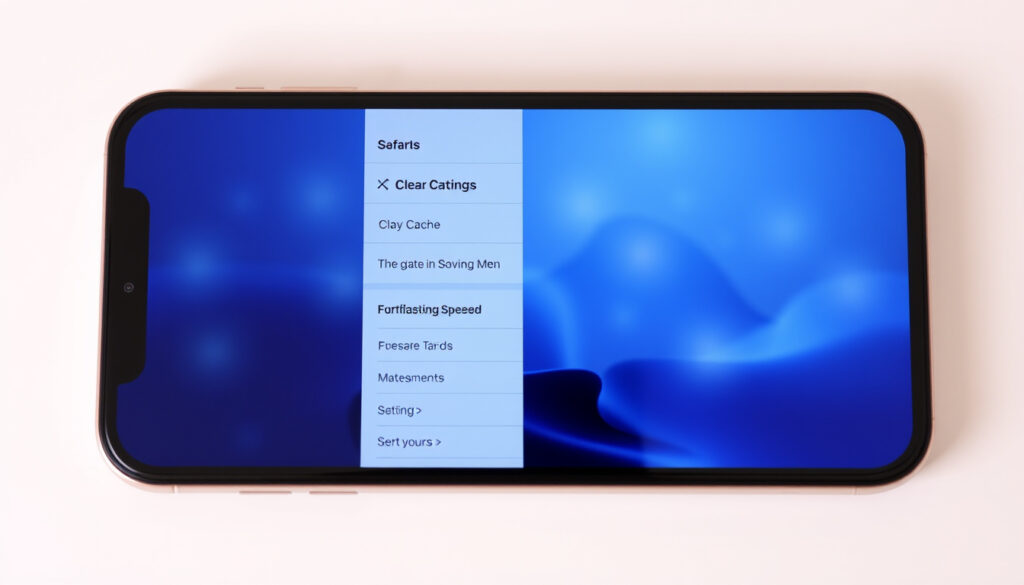
Clear Cache on iPhone – iOS 18 Safari and Apps Guide
iOS does not include a single button to wipe all cached data at once. Instead, Apple provides separate tools for clearing Safari browsing data, managing app storage, and refreshing system memory through restarts. Understanding which caches store what information helps users free meaningful amounts of storage without risking personal data like photos or messages. This guide covers every effective method for iPhone 15, iOS 18, and earlier versions.
Cached files accumulate from websites visited in Safari, temporary data stored by individual apps, and system-level information kept for quick access. While these files help apps load faster during normal use, they can consume several gigabytes on storage-constrained devices. The methods below range from quick browsing clears that take under a minute to deeper storage management requiring more deliberate steps.
How to Clear Safari Cache on iPhone
Safari holds the largest cache for most users because it stores website assets, cookies, and browsing history. Apple provides two main paths for clearing this data, both found within the Settings app. The process removes temporary files without affecting bookmarks or saved passwords.
Open Settings > Safari > Clear History and Website Data, then confirm. This removes history, cookies, cache, and location permissions across all devices signed into the same iCloud account. Websites will load slightly slower on the next visit until the cache rebuilds.
| Method | Location | Time | Space Saved |
|---|---|---|---|
| Safari Clear History | Settings > Safari > Clear History | 1 minute | 100MB–500MB |
| Website Data Removal | Settings > Safari > Advanced > Website Data | 2 minutes | Varies by browsing habits |
| App Offload | Settings > General > iPhone Storage | 2–3 minutes | App-dependent (1–5GB common) |
| Force Restart | Hardware buttons | 30 seconds | Minimal, clears RAM |
Steps for iOS 18 and Later
iOS 18 introduced enhanced storage tools within the iPhone Storage settings. Users can view which apps consume the most cache space and manage data per application. Navigate to Settings > General > iPhone Storage to see a color-coded bar showing storage breakdown, with recommendations that may include offloading apps with large caches.
The Safari app itself offers an alternative clear method. Open Safari, tap the tabs icon in the bottom-right corner, select the book icon for Bookmarks, tap the clock icon for History, then choose Clear. Select a timeframe such as Last Hour, Today, or All History to control how much data gets removed.
Clear Cache vs. Clear History
Clearing only cache removes temporary website files while preserving browsing history and saved login sessions for sites. Clearing history also removes records of URLs visited, which some users prefer for privacy reasons. Both options free storage space, but history deletion offers stronger privacy guarantees at the cost of losing chronological browsing records.
For users who want to maintain some site logins while clearing cache, the Settings > Safari > Advanced > Website Data > Remove All Website Data option clears cached content without altering the main history list. This button may appear grayed out if no website data exists.
How to Clear App Cache on iPhone
Unlike Android devices, iOS does not expose a per-app “clear cache” button within individual app settings. The only native path involves using the iPhone Storage management interface to either offload or delete applications entirely. Both approaches remove cached data while offering different trade-offs for data preservation.
Offload Unused Apps
Offloading removes the app executable while preserving associated documents and data. When reinstalled from the App Store, the app returns to its previous state with all user content intact. This makes offloading the preferred method for clearing cache without losing local data. Navigate to Settings > General > iPhone Storage, select an app, and choose Offload App.
iOS can automatically offload unused apps when storage runs low. Enable this by navigating to Settings > General > iPhone Storage > Offload Unused Apps. The system removes apps not launched in some time while keeping their data available for reinstallation.
Instagram frequently accumulates cache from viewed stories, downloaded filters, and cached image previews. Offloading the app clears this temporary data without affecting uploaded photos or saved posts. After reinstalling from the App Store and logging back in, all personal content remains available while the bloated cache starts fresh.
App-Specific Cache Clearing
Apps like Chrome, Twitter, and YouTube maintain their own internal caches that can grow large over time. These apps sometimes include cache management within their own settings menus. For Chrome, open the app, tap the three dots menu, select History > Delete Browsing Data, then choose both Cookies/Site Data and Cached Images/Files.
Most apps rebuild their caches immediately after clearing, so the freed storage space represents temporary relief rather than permanent savings. For apps known to accumulate large caches, repeating the offload process every few months helps maintain optimal storage levels.
Does Clearing Cache Make Your iPhone Faster?
The performance impact of clearing cache varies depending on what type of cache gets removed and the specific situation of the device. For Safari browsing, clearing cache often results in slightly faster initial page loads for frequently visited sites because the browser rebuilds its cache with fresh data rather than serving potentially outdated stored versions.
Performance Benefits
Devices running low on storage may experience slower performance due to iOS managing free space for essential operations. Clearing app caches can provide marginal improvements in these scenarios by freeing physical storage. However, iOS manages system-level cache automatically and does not expose a direct clear button for this data.
A force restart clears temporary files held in RAM and terminates background processes that may be consuming resources. On iPhone 15 and devices running iOS 18, this can temporarily reduce thermal throttling caused by sustained heavy use. The restart process involves quickly pressing Volume Up, then Volume Down, then holding the Side button until the Apple logo appears.
Storage Impact
Safari cache typically ranges from 100MB to 500MB depending on browsing habits. Large apps like Instagram, TikTok, and Google Maps can accumulate 1GB to 5GB of cached data over months of use. Users with 128GB iPhone models notice cache impact more acutely than those with 256GB or larger storage options.
The iPhone Storage settings display a System Data category that includes caches, logs, and temporary files. This category grows over time and cannot be directly cleared, but reducing individual app caches and restarting the device helps manage its size.
Is It Safe to Clear Cache on iPhone?
Apple confirms that clearing Safari cache and website data does not result in data loss for photos, messages, contacts, or app data stored within the iOS container system. The cleared data consists entirely of temporary files that the system can recreate as needed. This makes Safari cache clearing one of the safest maintenance operations available.
What Gets Deleted
When clearing Safari cache, the following data gets removed: stored website images and assets, cookies that maintain login sessions, browsing history entries, and cached website permissions like location access grants. Bookmarks and saved passwords remain untouched. Users will need to log back into websites and may notice slightly slower initial page loads until the cache rebuilds.
When offloading apps, the app itself gets removed but documents and data stay on the device. This means Instagram posts, WhatsApp conversations, and game progress remain intact. Deleting an app entirely removes everything, including data that might not exist anywhere else, so users should verify cloud backup status before proceeding.
Deleting apps removes all local data stored within that app. Game progress, offline documents, and app-specific settings disappear unless previously backed up to cloud services. Always verify that important data exists elsewhere before deleting any application, particularly those containing irreplaceable content.
Data Recovery
Cached data itself cannot be recovered after deletion because it consists of temporary copies. However, the original source typically remains accessible—website content reloads from servers, and cloud-synced app data restores from provider servers. Users concerned about data loss should ensure iCloud Backup is enabled via Settings > [Your Name] > iCloud > iCloud Backup > Back Up Now.
The Evolution of iOS Cache Management
iOS has gradually introduced more sophisticated storage management tools over successive versions. Each major release added capabilities that changed how users interact with cached data, reflecting Apple’s balance between user control and system simplicity.
- iOS 11 (2017): App offloading introduced as a feature, allowing users to remove apps while preserving data for reinstallation later.
- iOS 15 (2021): Enhanced Safari privacy features, including cache partitioning that isolates data between websites.
- iOS 17 (2023): Improved iPhone Storage interface with better visual breakdown and one-tap offload recommendations.
- iOS 18 (2024): Further refined storage management tools with enhanced visibility into System Data consumption.
The myth of a hidden system cache menu persists despite Apple representatives confirming that iOS manages system cache automatically without user intervention. No combination of settings reveals a secret cache clear button. The only ways to refresh system cache involve restarting the device or, as a last resort, resetting all settings through Settings > General > Transfer or Reset iPhone > Reset > Reset All Settings.
What We Know and What Remains Unclear
| Claim | Status | Source |
|---|---|---|
| Clearing Safari cache does not delete photos | Confirmed safe | Apple Support documentation |
| Offloading apps preserves user data | Confirmed safe | Apple Support documentation |
| iOS has a hidden system cache menu | False | Multiple tech sources, Apple |
| Clearing cache noticeably speeds up iPhone | Minor improvement only | User reports, testing |
| Third-party cleaner apps provide benefits | Not verified; potentially risky | Security community guidance |
| System Data category can be directly cleared | No direct method exists | Apple iOS documentation |
The exact amount of storage consumed by individual app caches remains unclear without manual checking, as iOS does not display cache size separately from total app storage. The performance difference after clearing cache varies significantly based on device age, current storage pressure, and which specific cache types get cleared.
Understanding iPhone Cache Fundamentals
Cache exists to speed up repeated operations by storing copies of data locally rather than fetching it repeatedly from the internet or recalculating it from source files. Safari cache includes images, scripts, and stylesheets from websites, allowing pages to load faster on return visits. App cache includes preprocessed data, temporary files generated during use, and downloaded content meant for offline access.
Unlike desktop operating systems, iOS implements strict sandboxing that isolates each app’s cache within its own container. Apps cannot access another app’s cache, which provides security benefits but also means each app manages its own storage independently. This architecture explains why iOS lacks a global cache clear option and why per-app management remains the only native approach.
For most users, the practical approach involves clearing Safari cache monthly, offloading large apps quarterly, and restarting the device weekly to maintain optimal performance. Those needing more aggressive storage management can delete and reinstall apps known for large caches, or enable automatic offloading of unused apps to maintain steady state storage levels.
“When you clear your history and data, Safari resets your browsing data and removes the information saved about your browsing activity.”
Key Takeaways for Managing iPhone Cache
Clearing cache on iPhone involves separate processes for Safari browsing data, individual app storage, and system refresh through restarts. Safari offers the most straightforward cache clearing through built-in settings, while app cache management requires using the offload or delete options within iPhone Storage. Neither operation affects personal data like photos or messages when performed correctly.
Performance benefits remain modest for most users, though storage-constrained devices may see marginal improvements. The most effective strategy combines regular Safari clears, automatic app offloading, and periodic device restarts. Users should avoid unverified third-party cleaner apps and always maintain current backups through iCloud before performing significant storage management.
For additional device management guides, see our instructions on How to Take a Screenshot on a Chromebook – Shortcuts and Fixes or explore payment options in our T-Mobile Pay Bill – Complete Guide to All Methods.
Frequently Asked Questions
How do I clear all cache on my iPhone at once?
iOS does not provide a single button to clear all cache. Instead, clear Safari cache through Settings > Safari, offload large apps through Settings > General > iPhone Storage, and perform a force restart by pressing Volume Up, Volume Down, then holding the Side button until the Apple logo appears.
Does clearing cache delete photos from iPhone?
No. Clearing Safari cache, offloading apps, and restarting do not affect the Photos app or stored images. Photos exist in a separate protected container that these operations cannot access.
How do I clear cache on iPhone without deleting apps?
Safari cache can be cleared through Settings > Safari > Clear History and Website Data. App cache requires offloading through Settings > General > iPhone Storage > [App Name] > Offload App, which removes the app while preserving documents and data.
Where is cache stored on iPhone?
Cache exists within each app’s sandboxed container. Safari cache resides in the Safari app directory. Individual apps store their temporary files in private directories inaccessible to other apps and the file system explorer.
Does clearing cache improve iPhone performance?
Clearing cache provides minor performance benefits for most users. The most noticeable improvement occurs on storage-constrained devices or after clearing Safari cache, where websites may load slightly faster with fresh cached files.
How often should I clear cache on iPhone?
Clearing Safari cache monthly works well for most users. Offloading unused apps quarterly or enabling automatic offloading maintains storage levels without regular attention. Weekly restarts help keep system performance optimal.
Can I clear cache on iPhone iOS 18?
Yes. iOS 18 supports the same cache clearing methods as previous versions: Safari cache through Settings > Safari, app offloading through Settings > General > iPhone Storage, and force restart through the button sequence.
More related posts
 Charlotte Hornets vs Utah Jazz Match Player Stats – Box Score and Key Stats Breakdown
 GTA 5 Release Date: Full Timeline, Sales & GTA 6 Delay
 US Map of States: 50 States, Territories & 52 State Myth
 How to Make Pancakes: Easy Step-by-Step Recipe Guide
 TSITP Season 3 Release Dates: Full Episode Schedule
 What Day Is It Today? Current Date, Holidays, Observances
 John 13:7 Meaning: Trust God When Life Is Unclear
 Redmi Note 13 5G to Buy: Best Prices Ireland