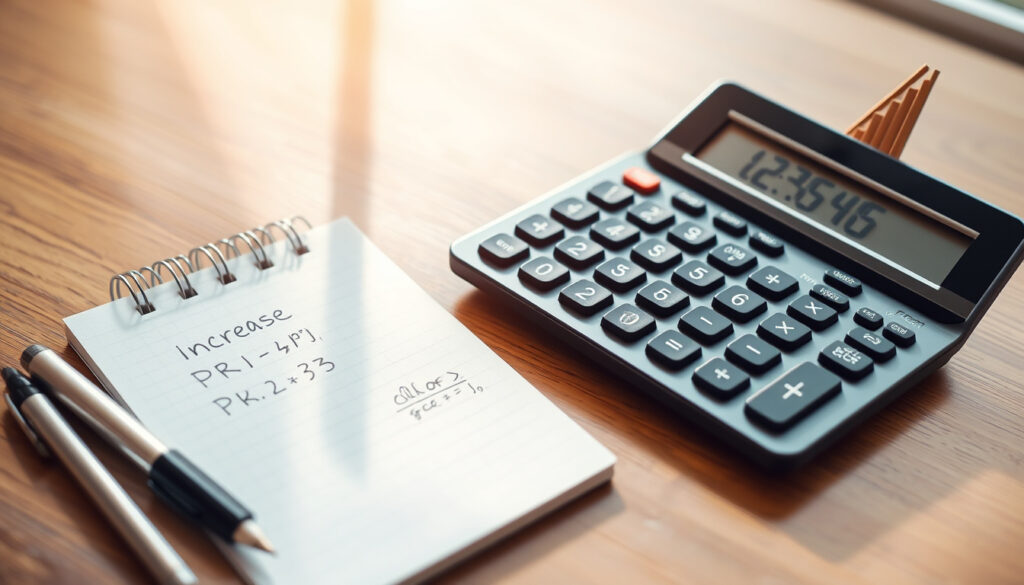
How to Calculate Percentage Increase: Formula & Examples
Whether you’re negotiating a raise, comparing prices, or tracking growth in a spreadsheet, percentage increases come up constantly — and they’re easier to get wrong than most people realize. The formula is simple: subtract your old value from the new one, divide by the old value, then multiply by 100. But the applications get trickier once you factor in Excel shortcuts, salary benchmarks, and the occasional counterintuitive result (yes, 300% increase really does mean 4× the original). This guide walks you through the math, the shortcuts, and the real-world examples that stick.
Standard Formula: (new value – old value) / old value × 100% · 5% Increase on $100: $105 · From ₹250 to ₹300: 20% · Excel Formula: =(B2-A2)/A2*100 · Typical Annual Raise: 4-5%
Quick snapshot
- (New – Old)/Old × 100% gives the universal percentage increase formula (Academy of Learning)
- Positive result = increase; negative result = decrease (Academy of Learning)
- Industry-specific raise benchmarks vary widely by sector, region, and company size
- When multiple percentage increases compound, the order of application affects final results
- Apply the formula across pricing, salaries, investments, and analytics
- Excel automation can turn repetitive percentage calculations into one-click operations
- Using the new value as the denominator instead of the original — always use the original as base (Academy of Learning)
- Forgetting to format as percentage in Excel, giving you decimals like 0.067 instead of 6.7% (Academy of Learning)
| Label | Value |
|---|---|
| Core Formula | (new – old)/old × 100% |
| 5% of 100 | 5 (total 105) |
| 250 to 300 Increase | 20% |
| Excel Increase Cell | =A1*(1+B1) |
How do you calculate a percentage increase?
The standard percentage increase formula works the same whether you’re comparing prices, salaries, or plant heights: take the difference between the new value and the original value, divide by the original, then multiply by 100 to get your percentage. According to Academy of Learning (Excel education resource), the core formula is (New Value – Original Value) / Original Value. A positive result means your value went up; a negative result means it went down.
The basic percentage increase formula
Here’s the formula written out in plain math:
- Percentage Increase = ((New Value – Original Value) / Original Value) × 100
The formula works because dividing by the original value “normalizes” the change — it tells you what fraction of the original amount the increase represents. Wall Street Prep (financial training platform) notes that multiplying by 100 simply converts that fraction into the percentage format we recognize.
Step-by-step calculation process
- Subtract the original value from the new value (difference = new – original)
- Divide the difference by the original value
- Multiply by 100 to convert to percentage
For a concrete example, if you invested $1,000 and it grew to $1,200, the increase is $200. Dividing $200 by $1,000 gives 0.2, and multiplying by 100 gives 20%. Your investment returned 20%.
Using the original value as your denominator isn’t arbitrary — it’s what makes percentages comparable. If you compare two investments that both gained $100, one starting from $500 and one from $2,000, only looking at the original base tells you which investment performed better in percentage terms.
What is a 5% increase of $100?
A 5% increase on $100 equals $5, making the new total $105. The math is straightforward: 5% of 100 is 5 (because a percentage represents a fraction of 100), and you add that to the original amount. This type of calculation comes up constantly — in pricing adjustments, sales discounts, and tip calculations.
Calculating fixed percentage increases
There are two equivalent methods for applying a fixed percentage increase:
- Method 1: Calculate the increase amount, then add to original → $100 + ($100 × 0.05) = $105
- Method 2: Multiply by a single multiplier → $100 × 1.05 = $105
The multiplier method (Method 2) is faster in Excel and mental math. As Excel tutorial creators demonstrate, multiplying by 1.1 increases by 10%, by 1.2 increases by 20%, and by 1.3 increases by 30%.
Examples for 4%, 5%, and 20%
- $100 + 4% = $100 × 1.04 = $104
- $100 + 5% = $100 × 1.05 = $105
- $100 + 20% = $100 × 1.20 = $120
Notice the pattern: the percentage (4, 5, 20) becomes the decimal multiplier when you add it to 1. This works in reverse too — a 15% decrease means multiplying by 0.85.
A percentage is a number or ratio that represents a fraction of 100. That’s the entire concept — nothing more complicated than splitting something into 100 equal parts and seeing how many of those parts you have.
— Excel education content creator, explaining fundamental percentage concepts
What is the percentage increase if 250 is increased to 300?
Going from 250 to 300 is a 20% increase. Applying the formula: (300 – 250) / 250 × 100 = 50 / 250 × 100 = 0.20 × 100 = 20%. This example is particularly common in pricing scenarios — think of a product that costs ₹250 today but will retail for ₹300 after a price adjustment.
Percentage increase between two numbers
The “250 to 300” calculation illustrates a key principle: when calculating percentage increase between any two numbers, always identify which is the original (starting point) and which is the new value. Using MacAbacus (financial modeling resource), the Excel formula =((B3-B2)/B2)*100 calculates this automatically once you input your two values in cells B2 and B3.
- Difference: New value minus original = 300 – 250 = 50
- Proportion: 50 / 250 = 0.20
- Percentage: 0.20 × 100 = 20%
Real pricing change scenarios
Price increases follow this formula exactly. If a supplier raises a product from ₹250 to ₹300, the 20% increase affects purchasing decisions, cost projections, and budget allocations. According to Wall Street Prep, percentage change calculations are essential for tracking year-over-year growth rates in Revenue and Net Income.
Here’s where intuition often fails: a 100% increase doubles your value ($100 → $200), but a 200% increase doesn’t triple it — it quadruples it ($100 → $300). A 300% increase means your new value is 4× the original ($100 → $400). The percentage tells you how many “original amounts” you’ve added, not a direct multiplier to the final number.
How to calculate percentage increase in salary?
Salary increases use the exact same formula as any other percentage calculation. According to Excel salary tutorials, the salary increment percentage is calculated as (New Salary – Current Salary) / Current Salary. If your salary went from $65,000 to $68,250, that’s a 5% raise ($3,250 / $65,000 = 0.05 = 5%).
Salary raise percentage calculator
To calculate your raise percentage manually:
- Subtract your current salary from your new salary
- Divide that difference by your current salary
- Multiply by 100
For example: New salary $72,000 – Current salary $68,000 = $4,000 difference. $4,000 / $68,000 = 0.0588 = 5.88% raise. As Excel tutorial creators explain, you can also calculate the new salary directly without finding the percentage first by using: Existing Salary × (1 + Percentage Increase). For instance, $68,000 × 1.0588 = $72,000.
Is a 4.7% raise good?
Common annual raise benchmarks fall in the 4-5% range for consistent performance, according to general industry standards. A 4.7% raise sits in the typical range for satisfactory performance. However, “good” depends heavily on inflation rates, industry norms, and your market value — a 3% raise might be excellent in a tight market, while 6% might be expected in high-growth sectors. The formula remains constant; the interpretation depends on context.
When negotiating salary, knowing the formula gives you a precise target. If you’ve received an offer of $85,000 but you know you’re worth $95,000, you can present the difference (roughly 12% above their offer) rather than just asking for “more.” Data-backed negotiations are harder to dismiss.
How to increase a number by a percentage?
Increasing a number by a percentage means taking the original amount and adding the calculated percentage of that amount. There are two main approaches: the additive method (calculate increase, then add) and the multiplier method (multiply by 1 plus the decimal form of the percentage).
Direct multiplication method
The fastest way to increase any number by a percentage:
- New Value = Original × (1 + percentage as decimal)
- Increase by 7% → multiply by 1.07
- Increase by 12% → multiply by 1.12
- Increase by 25% → multiply by 1.25
This method is especially useful because it works in reverse for decreases: multiply by 0.93 to decrease by 7%.
Excel formula for percentage increase
In Excel, you’ll want to master two key formulas. First, for calculating percentage change between two cells:
- =((B2-A2)/A2)*100 — calculates percentage change from A2 to B2
Second, for increasing a value by a percentage stored in another cell:
- =A2*(1+B2) — increases A2 by the percentage in B2
Academy of Learning recommends using absolute references ($) when copying formulas down multiple rows so the base percentage stays constant. Without the dollar sign, cell references shift as you copy and produce incorrect results.
In the percentage change formula, the difference calculation (B3-B2) finds the absolute change, dividing by the original normalizes it relative to your starting point, and multiplying by 100 converts it to readable percentage form. Each step has a specific purpose.
— MacAbacus (financial modeling resource)
How to calculate percentage increase or decrease in Excel?
Excel handles both increases and decreases with the same formula — the sign of your result tells you which direction the change went. Positive = increase; negative = decrease. According to Microsoft Support (official documentation), the formula =(2500-2342)/2342 calculates to 0.06746, which equals 6.75% when formatted as percentage.
Formatting decimal results as percentages
After entering your formula, you need to format the result as a percentage:
- Windows: Ctrl + Shift + %
- Mac: ⌘ + Shift + %
- Or: Right-click → Format Cells → Percentage
Without formatting, Excel displays the raw decimal (0.06746) rather than the human-readable percentage (6.75%). This is a common source of confusion when formulas are technically correct but displays look wrong.
The alternative percentage change formula
An equivalent formula, as described by Wall Street Prep, uses division instead of subtraction:
- Alternative: (Ending Value ÷ Beginning Value) – 1
Both formulas produce identical results. The alternative is useful when you’re comparing against a known benchmark or when the ending value is more salient than the raw difference. If revenue went from $2.5M to $3.2M, (3.2M ÷ 2.5M) – 1 = 1.28 – 1 = 0.28 = 28% increase.
When working with very small percentages (say, a 0.5% daily change), the two formula methods can diverge slightly due to rounding in intermediate steps. For financial reporting, use consistent precision settings in Excel to ensure comparability across periods.
Related reading: calculate EV charging costs
In salary raise scenarios, applying the core formula becomes straightforward when following a percentage increase formula guide with practical steps and diverse examples.
Frequently asked questions
How to calculate percentage increase or decrease?
Use the formula ((New Value – Original Value) / Original Value) × 100. A positive result indicates an increase; a negative result indicates a decrease. For decreases, you can also use the alternative formula ((New ÷ Original) – 1) × 100.
How to calculate percentage increase in Excel?
Enter =((B2-A2)/A2)*100 where A2 is your original value and B2 is your new value. Format the result as percentage using Ctrl+Shift+% on Windows or ⌘+Shift+% on Mac. To increase a value by a percentage in another cell, use =A2*(1+B2).
Is 300% increase 4 times?
Yes. A 300% increase means your new value is 400% of the original (the original 100% + 300% added = 400% of original). This equals 4× the starting value. A 100% increase = 2× original, 200% increase = 3× original, 300% increase = 4× original.
Is 16% of 25 the same as 25% of 16?
Yes, due to the commutative property of multiplication. 16% × 25 = 0.16 × 25 = 4, and 25% × 16 = 0.25 × 16 = 4. Both calculations yield 4. This is a useful mental math trick: when comparing percentages of different numbers, you can often swap the order for easier calculation.
How to calculate percentage increase in Biology?
The formula is identical to any other field: ((New Measurement – Original Measurement) / Original Measurement) × 100. Biologists commonly use this to track growth rates — for example, measuring plant height week-over-week or bacterial colony expansion over time.
Is 4.7% raise good?
A 4.7% raise falls within the typical 4-5% annual raise range for satisfactory performance. Whether it’s “good” depends on inflation (real wage growth), industry standards, and your personal market value. In high-inflation periods, a 4.7% raise might represent a pay cut in real terms.
How much of a raise should you ask for?
Research comparable salaries for your role and experience level, calculate what percentage your target salary represents over your current salary, and present a range rather than a single number. Asking for 15-20% over current salary gives room for negotiation while keeping your target clear. Know your walk-away point before entering the conversation.
Related reading
- Academy of Learning — Excel percentage calculation guide
- Microsoft Support — Calculate percentages
- Wall Street Prep — Percent change formula
- MacAbacus — Percentage change in Excel
For everyday math, the percentage increase formula is genuinely one of those skills that pays off every time you use it. Employees who can calculate their raise percentage accurately avoid being undersold in negotiations. Shoppers who understand percentage discounts spot better deals. Analysts who master the Excel shortcuts complete in minutes what takes others hours.
More related posts
 Salmon in Air Fryer: Cook Time, Temperature & Common Mistakes
 What Is C. Diff? Symptoms, Causes & Treatment Guide
 Where Does Elon Musk Live? 2026 Residence, Tiny House & Net Worth
 Poison Ivy Rash Pictures: Stages, Treatments & Look-Alikes
 What Does Zinc Do for the Body – Key Functions Benefits Sources
 How to Lower Cholesterol Naturally – Proven Diet and Lifestyle Changes
 How the Grinch Stole Christmas 1966: Watch, Stream & Facts
 Mid Autumn Festival 2025 – Date, Traditions, Celebrations Guide